Stop 40 Minute Redos: DragonFly Max Export Checklist for Coaches

To handle a DragonFly Max export, open the Data Properties panel, select the object, measurement table, or mesh you need, then right-click (or hit the Export icon) and pick your file type: CSV for tables, ORSObject for native objects, or STL, PLY, or VRML for meshes. Choose a destination folder, name the file, and save. Always open the exported file afterward to confirm it looks right before you send it anywhere.
TL;DR:
- Export measurements as CSV in meters and radians, requiring manual unit conversion if specific units like millimeters or degrees are needed.
- Use either single or multiple ORSObject formats for objects, with clear naming to prevent overwriting or confusion during batch exports.
- Choose ASCII format for meshes for long-term readability and archiving, or binary for faster loading with large or dense mesh files.
- Always test a small sample export in the target application before exporting the entire dataset to avoid costly errors with units or formatting.
- Keep backups of native ORSObject files alongside converted exports and document unit conventions to streamline future re-exports.
Table of Contents
- Quick Export Checklist Before You Start
- Step-by-Step: Exporting Each Data Type
- Verify Your Exports and Fix Common Problems
- Choosing Formats That Hold Up Long Term
- A Simple Workflow That Prevents Most Export Headaches
- A Better Way to Handle Athlete Data Without Constant Exports
- Official DragonFly Export Docs Worth Bookmarking
- Sources
- FAQ
Quick Export Checklist Before You Start
Before you export anything out of DragonFly Max, run through this short list. It takes two minutes and saves you from redoing a 40-minute export because you picked the wrong folder or forgot which unit system you were working in.
- Check your permissions. Make sure your account can access the Data Properties panel or the measurement tables you’re trying to pull from. If you’re locked out of a shared workspace, this is where it shows up first.
- Pick your data type first. Measurements, objects, meshes, and scalar values all export differently. Decide which one you actually need before you start clicking around, because switching mid-export usually means starting over.
- Choose your destination folder up front. Pick a folder and a naming pattern (team name, date, session number) before you export a batch of files. Nothing wastes more time than hunting for “Export_47.csv” three weeks later.
- Decide on ASCII vs binary for meshes. ASCII files are bigger but you (or anyone else) can open and read them in a text editor. Binary files are smaller and load faster, which matters once mesh files start climbing past a few hundred megabytes.
- Estimate file size if you’re exporting a lot at once. A single ORSObject export is no big deal. Twenty of them, with full-resolution meshes attached, can eat disk space fast.
Get this part right and the actual export step becomes almost boring. That’s the goal.
Step-by-Step: Exporting Each Data Type
DragonFly Max handles four main categories of exportable data, and each one has its own export path. Here’s how to run each one without guessing.
Exporting measurement tables as CSV
If you’ve built out an Analyze or Classify table full of measurements, CSV is your format.
- Open the Analyze or Classify measurements table you want to export.
- Select the table (or the specific rows you need).
- Use the Export to CSV option from the table’s menu.
- Choose a destination folder and confirm the file name.
Here’s the part that trips people up: numeric measurements export as raw saved values, not the display values you see on screen. A length shown as 4.13 millimeters on your screen will export as 0.00413379 because Dragonfly saves lengths in meters and angles in radians, according to the official CSV export documentation. If you’re handing this file to an athletic trainer or a stats-minded parent who expects millimeters, you need to convert it, or at least flag the unit in your README before someone reports the wrong number in a game-day packet.
Exporting objects as ORSObject
Objects, which cover volumetric data, regions of interest, annotations, and meshes bundled together, export in Dragonfly’s native format: ORSObject.
- Open the Data Properties and Settings panel.
- Select the object (or objects) you want to export.
- Right-click and choose either Export as ORSObject for one combined file, or Export as Multiple ORSObject if you want each item saved separately.
- Pick your destination folder and confirm names.
You can export objects in this format directly from the Data Properties panel, and the choice between single-file and multi-file matters more than it sounds. A single combined ORSObject is easier to move around and share as one package. Multiple separate files make more sense when you need to hand off individual items to different people, like sending each player’s data to their own file.
One thing worth knowing before you export a batch: if two objects share the same name, Dragonfly appends a sequential number to the file so nothing gets overwritten. That’s helpful, but it also means you should double-check your export folder afterward. A dozen files named “Athlete_1,” “Athlete_1_2,” and “Athlete_1_3” is a naming headache waiting to happen if your original objects weren’t labeled clearly to begin with.
Exporting meshes to STL, PLY, or VRML
Meshes get their own export path, separate from objects and tables.
- Right-click the mesh in the Data Properties panel.
- Choose Export Mesh to File.
- Pick your format: STL, PLY, or VRML.
- Set your options, including center at origin and unit scale, if the mesh needs to line up with another coordinate system.
- Choose ASCII or binary encoding.
According to Dragonfly’s own mesh export guidance, ASCII files run larger but stay readable and archival-friendly, while binary files are smaller and faster to load, especially useful for dense biomechanical meshes. If you’re exporting a mesh into a CAD program or a 3D viewer that a coach or physical therapist will open on a laptop in a hurry, binary usually wins on speed. If you need something that will still open cleanly in five years regardless of software updates, ASCII is the safer archival bet.
If you’re saving a PLY or VRML file, you also get the option to preserve vertex colors or scalar values, which matters if your mesh has color-coded regions marking stress points or movement zones, per the mesh export options documentation. Skip that setting and your recipient gets a plain gray mesh with none of the context you built in.
Exporting scalar values to CSV
If you’re working with a scalar mesh (surface data tagged with numeric values like pressure or strain), export those values separately from the mesh geometry itself.
- Select the scalar mesh.
- Use the Export Scalar Values button, or right-click for the same option.
- Choose which scalar slots to include.
- Decide whether to include X, Y, and Z coordinates alongside the scalar data.
Including coordinates makes the file bigger, but it’s the only way a spreadsheet or analysis tool downstream can map each scalar value back to a physical location on the mesh. Skip the coordinates and you’ve got a column of numbers with no context.
Test with a sample before running the full export
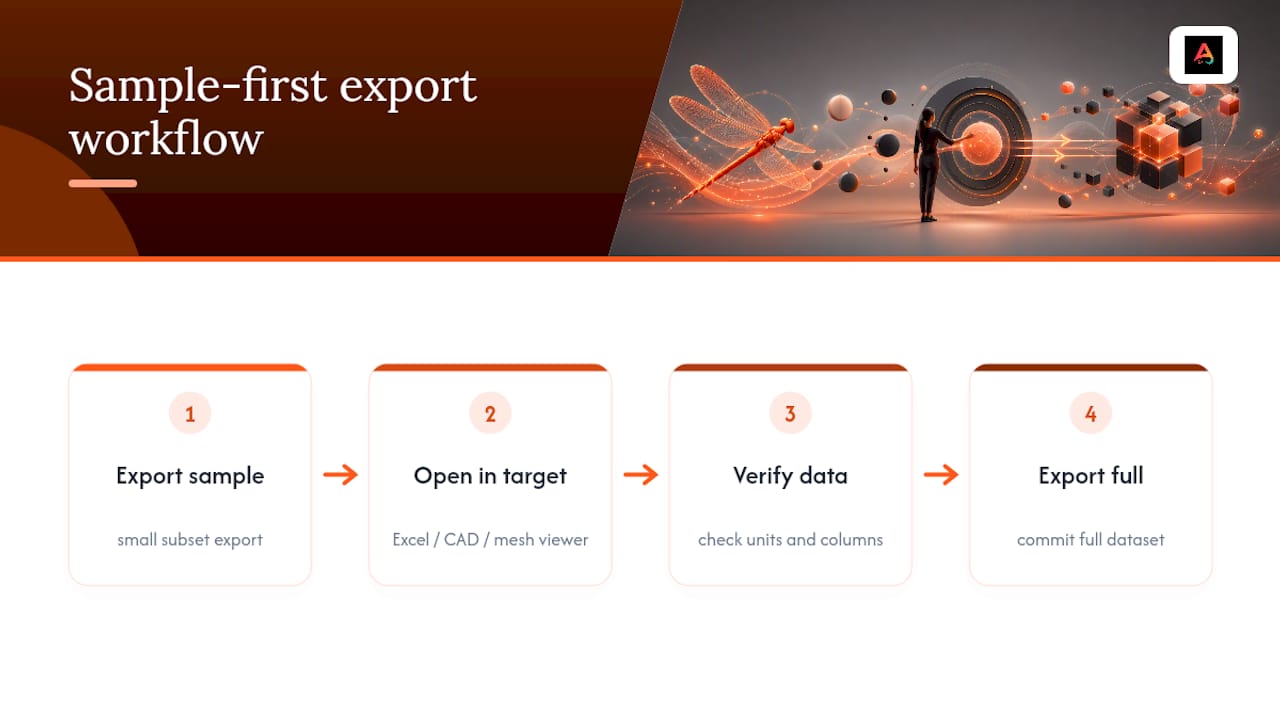
Whatever data type you’re working with, export a small sample first. Open it in the destination application (Excel, a CAD program, a mesh viewer) before you commit to exporting the full dataset. It takes an extra five minutes and it’s the single easiest way to catch a wrong unit setting or a missing column before it becomes forty files you have to redo.
Verify Your Exports and Fix Common Problems
An export that “completes successfully” isn’t the same as an export that’s actually correct. Always open the file before you send it anywhere.
- For CSV files: open them in a spreadsheet and check the column headers and the numeric values. If a length that should read 12 millimeters shows up as 0.012, that’s not a bug. That’s Dragonfly saving the value in meters, exactly as documented.
- For mesh files: open them in a 3D viewer and confirm the geometry looks right, especially if you exported vertex colors or scalar values. A mesh that loads gray when it should be color-coded usually means that export option got missed.
- If files don’t show up at all: check available disk space first, then confirm you have write permissions on the destination folder, then check whether the app itself is stable (a crash mid-export can leave a partial file or none at all).
- If you’re getting naming collisions: remember that Dragonfly appends sequential numbers automatically when object names repeat during a multi-file export. If that’s creating confusion, rename your source objects clearly before exporting instead of sorting it out after the fact.
Pro Tip: Keep a small “test export” folder separate from your real archive. Run every new export type through it first. If something’s wrong with units, naming, or format, you find out in a folder that doesn’t matter instead of one your athletic director is about to open.
If exports are failing consistently and none of the usual fixes work, that’s often less about your steps and more about a local install issue. A quick app restart or update check resolves more of these than people expect.
Choosing Formats That Hold Up Long Term
Not every export is going to the same place, and the format you choose should match where the file is headed.
- Default to standard interchange formats. CSV for tables, STL/PLY/VRML for meshes. These open in spreadsheet software, CAD programs, and visualization tools without a specialized reader, which matters when you’re handing files to someone outside your usual software setup.
- Pick ASCII when readability and long-term access matter more than file size. A mesh you’re archiving for a multi-year study benefits from being human-readable a decade from now.
- Pick binary when size and speed matter more. Sharing a large mesh over email or a shared drive goes faster in binary, and most 3D viewers open it just as easily.
- Attach a short README with every export. One sentence noting the export date, the units used, and what’s included saves the next person from guessing whether that 0.0041 is meters or something else entirely.
- Keep a native ORSObject copy of anything important. Converted formats lose some Dragonfly-specific structure. A native backup means you can always regenerate a clean export later if the first one turns out wrong.
Dragonfly’s own product documentation backs this up directly: converting to a format your downstream software can read reliably matters more for long-term access than sticking with whatever’s fastest to export right now, per Dragonfly’s product overview. If your mesh export is headed toward a biomechanical analysis pipeline, formats built for that kind of 3D data workflow tend to hold up better than a quick one-off export.
A Simple Workflow That Prevents Most Export Headaches
Most export problems in DragonFly Max aren’t format problems. They’re sequencing problems. People export the full dataset first, discover a unit mismatch or a missing column, and redo everything from scratch. Flip that order.
Export a small sample first and open it in whatever application it’s headed to, whether that’s Excel, a CAD tool, or a mesh viewer, before you touch the full dataset. This single habit catches almost every unit error and format mismatch before it costs you real time.
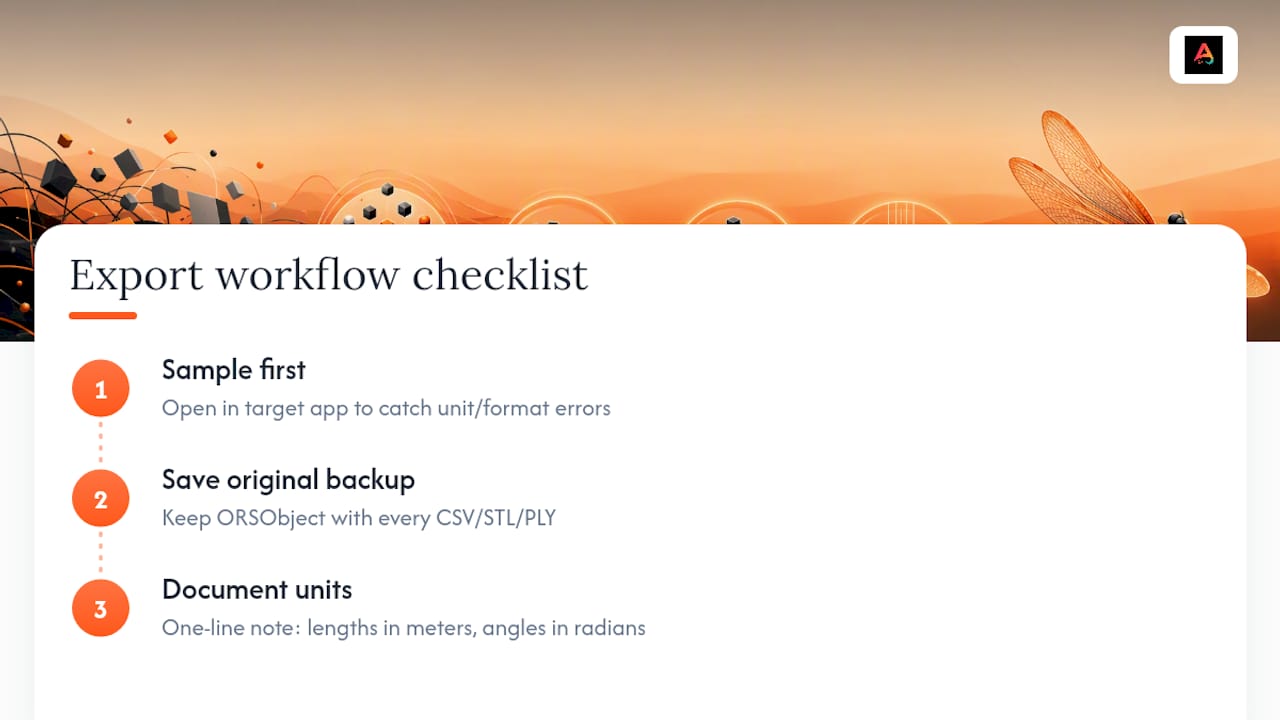
Second, never treat a converted export as your only copy. Save an ORSObject backup alongside every CSV, STL, or PLY file you generate. Converted formats are great for sharing, but they don’t always preserve every detail of the original Dragonfly object, and you’ll want the ability to regenerate a clean export if the recipient comes back with a problem.
Third, write down your unit conventions somewhere the next person will actually see them. A one-line note that says “lengths in meters, angles in radians” prevents more confused emails than any amount of careful formatting.
— Abdulazeez
A Better Way to Handle Athlete Data Without Constant Exports
Athlo doesn’t replace what DragonFly Max does. It solves the problem right next to it: the constant manual exporting, sharing, and re-importing that eats up an athletic director’s week during a busy season.
Athlo centralizes key team management information such as medical forms and waivers, event details, and athlete records that parents can view. Where a one-off DragonFly Max export makes sense for a single report or a specific dataset headed to a specific tool, Athlo makes more sense for ongoing team management, where the same information needs to stay current for a whole season instead of getting re-exported every time something changes. If you’re running events, digital waivers and medical forms that update automatically beat chasing down a fresh export every time a roster changes. If you’re running a season’s worth of events with tickets and check-ins, QR-based event ticketing skips the export step entirely. Download Athlo on the App Store or Google Play and see whether centralizing your team’s data cuts down on the export work you’re doing right now.
Official DragonFly Export Docs Worth Bookmarking
The instructions above draw directly from Dragonfly’s own help documentation, and it’s worth keeping these bookmarked for reference the next time you’re mid-export and hit something unfamiliar.
Dragonfly’s object export guide covers the full ORSObject workflow, including single versus multiple file exports. The mesh export documentation walks through STL, PLY, and VRML options in more depth than fits here. For CSV exports specifically, the measurement export page explains the unit conversion behavior in full. And if you’re navigating DragonFly’s broader account tabs and hit a wall, the OHSAA DragonFly transition FAQ has practical navigation hints, including where to find tabs like “My Money” and “Manage Accounts.”
Sources
FAQ
How Do I Export Data From DragonFly Max?
Open the Data Properties panel, select the table, object, or mesh you need, then right-click or use the Export icon and choose your file format. CSV works for measurement tables, ORSObject for native objects, and STL, PLY, or VRML for meshes, per Dragonfly’s export documentation.
How Much Does DragonFly Max Cost?
DragonFly Max pricing isn’t listed in this article’s research, so check the official Dragonfly site directly for current pricing. If you’re looking for a free alternative to manage rosters, forms, and events alongside DragonFly, Athlo’s core features are free, with optional paid tiers (Athlo Plus at $3.99 per month and Athlo Pro at $7.99 per month) available on Athloapp.
Is DragonFly Max Down Right Now?
There’s no live outage tracker referenced in official Dragonfly documentation, so the most reliable way to check is to try logging in directly or contacting Dragonfly support. If you’re mid-export when something breaks, save your work and test with a small sample export once the app is stable again.
What File Formats Does DragonFly Max Support for Export?
DragonFly Max exports measurement tables as CSV, native objects as ORSObject, and meshes as STL, PLY, or VRML, with a choice of ASCII or binary encoding for mesh formats, according to Dragonfly’s mesh export guidance. Scalar values on a mesh export separately as CSV, optionally with X, Y, Z coordinates.
Do Exported Measurements Keep Their Original Units?
No. Numeric measurements export as raw saved values rather than the units shown on screen, meaning lengths save in meters and angles in radians regardless of the display format you were using, per Dragonfly’s CSV export documentation. Always check and convert units before sharing a CSV file with someone expecting millimeters or degrees.